-
Step 1
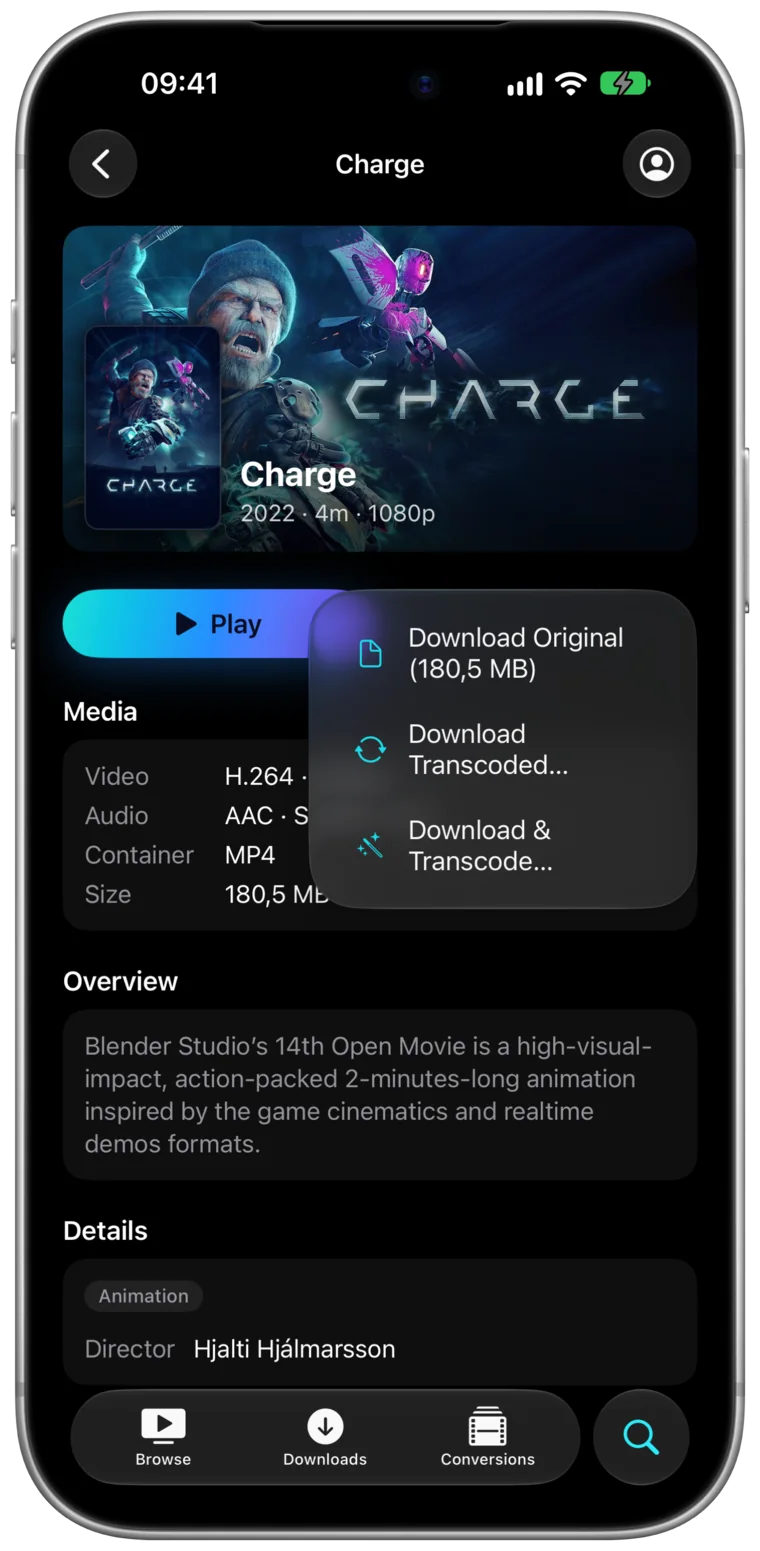
Download before you go
On a film or a season, tap Download. Download Original saves the file as it is, every track inside. Download Transcoded… has your server make a smaller copy, with the size shown before it starts.
-
Step 2
DownloadsEpisode 1Episode 2Episode 3
Let it run
Downloads carry on in the background and pick up again after interruptions, a whole season at a time. Pause one and carry on later.
-
Step 3
Airplane Mode
 Tears of SteelOn device
Watch in airplane mode
Downloads play with no connection at all. On iPhone and iPad they’re in the Files app too, under On My iPhone → Portage.
Real files. Downloads are ordinary video files that open in any player. On the Mac they go to a folder you pick.
What you need
- An iPhone, iPad or Mac with Portage
- Your Plex, Emby or Jellyfin server reachable while you download, at home or away
- Room on the device for the films
Other ways, and what they cost
- Stream over the plane’s Wi-Fi. Needs onboard Wi-Fi fast enough for video, and your server reachable from it. Often paid.
- Copy the files yourself. Needs access to the server’s disk, and files in a format your iPhone plays.
Smaller copies for a long trip
Download Transcoded… lets you choose the audio track, one subtitle and the quality, and shows the size before it starts. Download & Transcode… downloads the original and has your iPhone, iPad or Mac make the copy instead, so your server does no extra work.
Questions
Where do downloads go?
On iPhone and iPad, the Files app under On My iPhone → Portage. On the Mac, the folder you pick the first time you download.
Do I get every audio and subtitle track?
Download Original keeps every audio and subtitle track inside the file. Download Transcoded lets you choose the audio track and one subtitle.
Does it work with Emby and Jellyfin too?
Yes. Downloads work the same from Plex, Emby and Jellyfin servers.

Get Portage.
 For iPhone, iPad and Mac